

How We Tracked Deal Close Date Changes in HubSpot (And Used It to Improve Forecasting)
If you manage a sales team, you've probably seen it happen: a deal that was supposed to close this quarter quietly gets pushed to next quarter. Then next quarter comes around, and it moves again. And again.
Our Sales Manager was frustrated. Deals were being pushed out repeatedly with little visibility into how often it was happening, making quarterly forecasts unreliable. He had a clear rule: any deal that had been pushed out more than four times would be excluded from the forecast entirely.
The problem was HubSpot, out of the box, doesn't track how many times a close date has changed — or in which direction. We built a solution using custom properties and a workflow that does exactly that.
Pre-requisites
Data Hub Pro (required for the 'Add a number' data format action in workflows)
What we did
Step 1: Create the Custom Properties
You'll need four new deal properties. Create these in Settings > Properties > Deal properties.
-
-
Close Date Snapshot (Field Type: Date)
-
This property will capture the close date at the point the workflow runs, before any comparison logic. This acts as a temporary holding value.
-
-
Previous Close Date (Field Type: Date)
-
This property stores what the close date was before the most recent change, so we can compare it to the new close date.
-
-
Close date pushed out (Field Type: Number – Unformatted)
-
This property will become a running counter of how many times the close date has moved to a later date.
-
-
Close date moved up (Field Type: Number – Unformatted)
-
This property will become a running counter of how many times the close date has moved to an earlier date.
-
-
Step 2: Build the Workflow
Go to Automation > Workflows and create a new Deal-based workflow.
Trigger
-
-
Set the enrollment trigger to: Close Date is known
-
Re-enroll: Enabled
-
This workflow will run every time the close date changes
Step 3: Workflow Actions
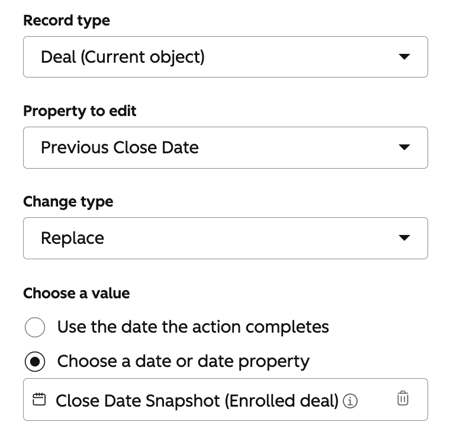
Action 1: Edit Record
-
-
Copy Close Date Snapshot → Previous Close Date
-
Use a Copy property value action to copy Close Date Snapshot into Previous Close Date.
-
This preserves the last recorded close date before we overwrite the snapshot.
Action 2: Edit Record
-
-
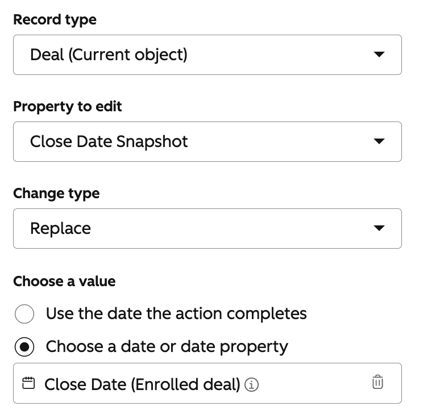
Copy Close Date → Close Date Snapshot
-
Use another Copy property value action to copy the deal's Close Date into Close Date Snapshot.
-
Now Previous Close Date holds the old date, and Close Date Snapshot reflects the new one.
Action 3: Branch
Add an If/then branch on the following conditions:
-
-
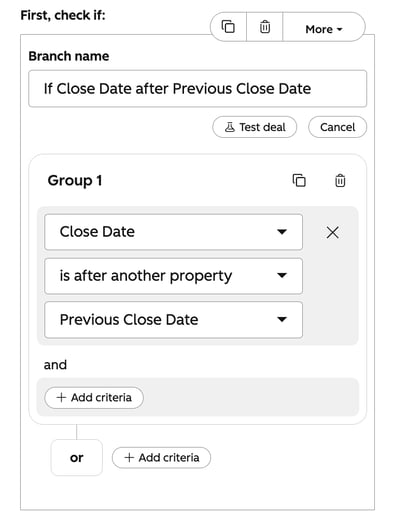
Branch 1:
-
Close Date - is after another property - Previous Close Date
-
-
-
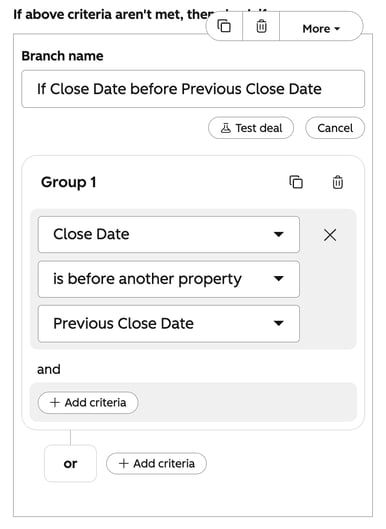
Branch 2:
-
Close Date - is before another property - Previous Close Date
-
Action 4:
-
-
On Branch 1: Close Date - is after another property - Previous Close Date
-
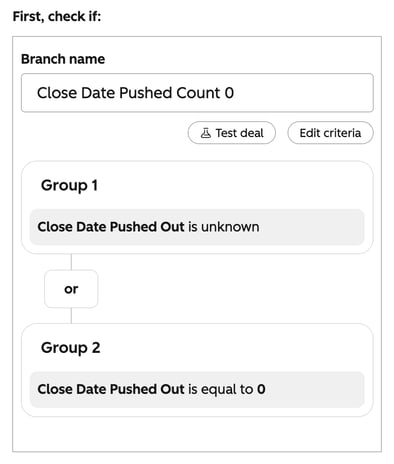
Add a second If/then branch with the following groups:
-
Close Date Pushed Out is unknown
-
Close Date Pushed Out is equal to 0
-
-
Action 5: Edit Record
-
Where Close Date Pushed Out is 0 or unknown:
-
Use an Edit Record action to set Close Date Pushed Out to 1.
-
Action 6: Format Data
-
Where the Close Date Pushed Count is known or 1 or more:
-
Use the 'Add a number' data format action to add 1 to Close Date Pushed Out.
-
Action 7: Edit Record
-
Set Close Date Pushed Out to the outcome of the Format Data action above.
Action 8:
-
-
On Branch 2: Close Date - is before another property - Previous Close Date
-
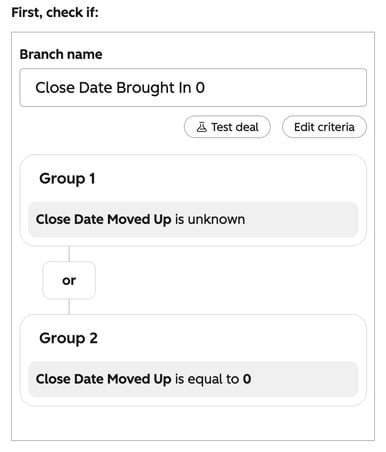
Add a second If/then branch with the following groups:
-
Close Date Moved Up is unknown
-
Close Date Moved Up is equal to 0
-
-
Action 9: Edit Record
-
Where Close Date Moved Up is 0 or unknown:
-
Use a Set property value action to set Close Date Moved Up to 1.
Action 10: Format Data
-
Where the Close Date Moved Up is known or 1 or more:
-
Use the 'Add a number' data format action to add 1 to Close Date Moved Up.
Action 11: Edit Record
-
Set Close Date Moved Up to the outcome of the Format Data action above.
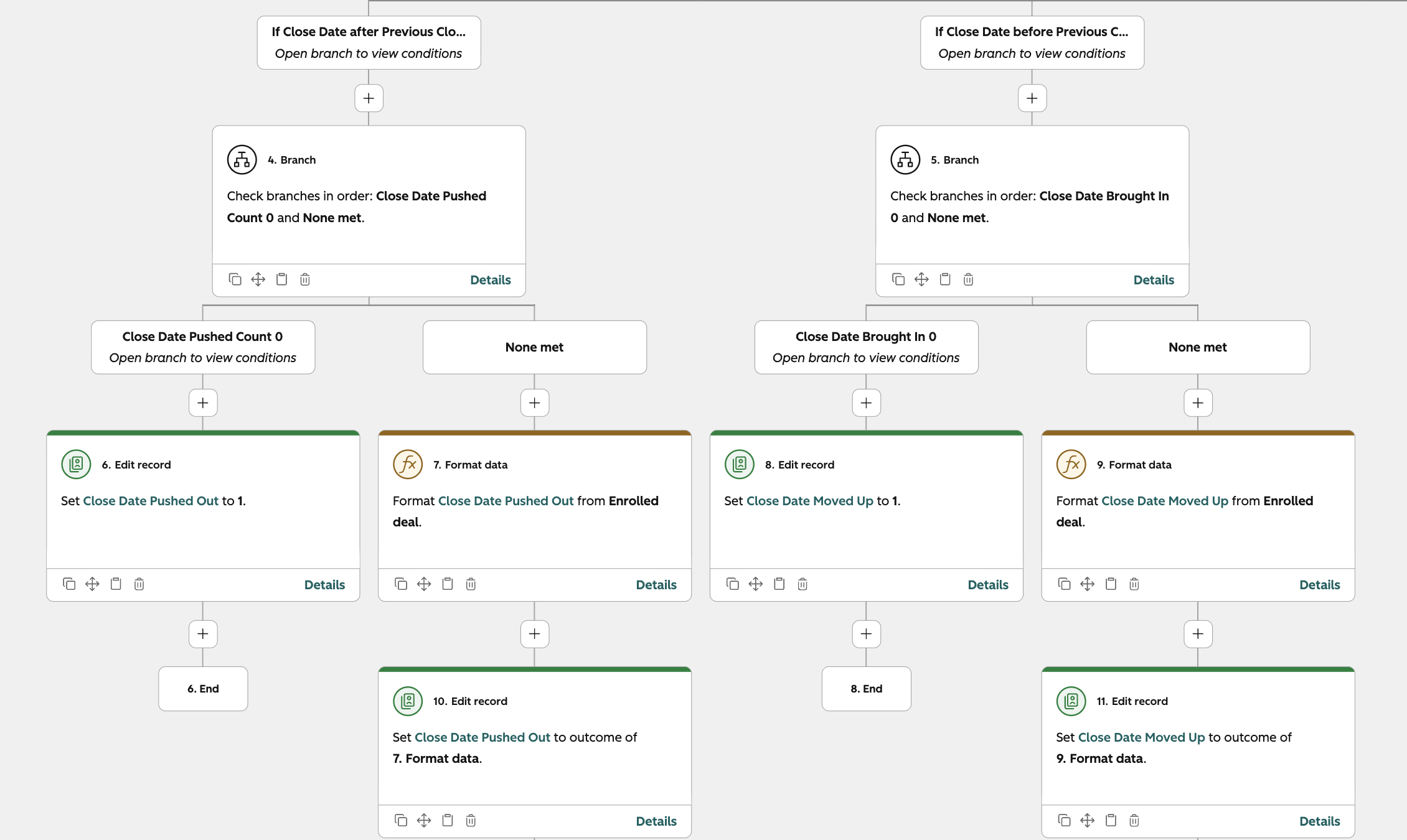 * Ignore the Action numbers in the screenshot above.
How We Used It for Forecasting
Once this was in place, the Sales Manager had two clean, reliable numbers on every deal:
-
Close Date Pushed Out: how many times has this deal slipped?
-
Close Date Moved Up: how many times has it accelerated?
For forecast reporting, we added a deal filter excluding any deal where Close Date Pushed Out is greater than 4. Those deals stayed in the CRM and pipeline view, but were automatically excluded from forecast reports, giving a far more accurate picture of what was genuinely likely to close.
In a separate report we populated a list of deals with a Close Date Pushed Out count greater than 4. This gave the team a new conversation to have in pipeline reviews. A deal sitting at 5 pushes isn't just a forecast risk, it's a signal that something deeper needs attention.
Summary
This solution is lightweight but powerful. With four properties and one workflow, you get full visibility into close date movement across your entire pipeline and a concrete, data-driven way to tighten up your forecasts.
If your team is struggling with deals that keep slipping, this is a practical first step toward holding the pipeline to a higher standard.
_________
If you're interested to hear how we might be able to help you get in touch with the team at RevOdyssey.